सेल्स एंट्री | Sales Entry
Path : Gateway of Tally>Vouchers>Sales (F8)
उपरोक्त पथ के अनुसार सेल्स वाउचर ओपन करें और निम्न प्रकार से जानकारी दर्ज करें-
Open the sales voucher according to the path mentioned above and enter the information as follows:
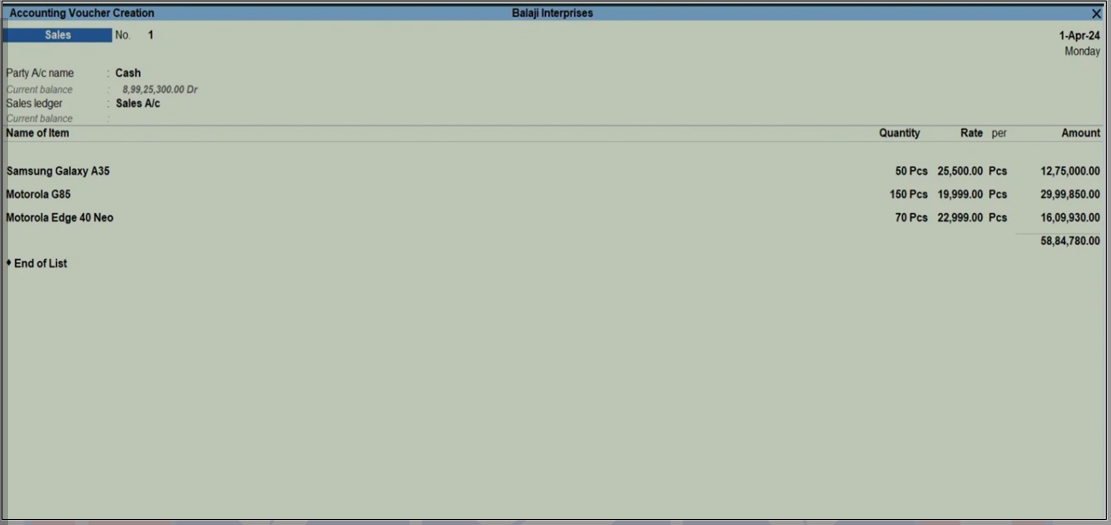
Sales Voucher Creation
- Voucher Mode : वाउचर मोड Item Invoice होना चाहिए, बदलने के लिए Ctrl+H प्रेस करें। The voucher mode should be Item Invoice; press Ctrl+H to change it.
- Date : वाउचर एंट्री तारीख दर्ज करें। Enter the voucher entry date.
- Party : Cash (नगद बिक्री के लिए) Cash (for cash sales)
- Sales Ledger : Sales A/c
- Name of Item : इसमे आइटम सिलेक्ट करें Samsung Galaxy A35
Select the item: Samsung Galaxy A35 - Qty : 50
- Rate : 25500
नोट – Samsung Galaxy A35 की Qty और Rate दर्ज करने के बाद इंटर करें और दूसरा स्टॉक आइटम (Motorola G85) सिलेक्ट करें, और उसकी भी Qty और Rate दर्ज करें। इसी प्रकार सभी आइटम्स को एक-एक करके सिलेक्ट करेंगे और उनकी Qty और Rate दर्ज करेंगे। बाकी ऑप्शन को डिफ़ॉल्ट रखते हुए वाउचर Accept (Ctrl+A) कर लेंगे।
Note – After entering the quantity and rate for the Samsung Galaxy A35, press Enter and select the next stock item (Motorola G85), and enter its quantity and rate as well. Similarly, select all the items one by one and enter their quantities and rates. Keep the remaining options as default and accept the voucher (Ctrl+A).
वाउचर एक्सेप्ट करने के बाद बेचे गए माल की रिपोर्ट Gateway of Tally से Stock Summary में देख सकते है। यहाँ स्टॉक ग्रुप सिलेक्ट करें और वह आइटम सिलेक्ट करें जिसे बेचा है। Stock Summary में Inward का मतलब खरीदा, Outward का मतलब बेचा और Closing Balance का मतलब उपलब्ध स्टॉक है
After accepting the voucher, you can view the report of goods sold in the Stock Summary section of Gateway of Tally. Here, select the stock group and then select the item that was sold. In the Stock Summary, “Inward” refers to purchases, “Outward” refers to sales, and “Closing Balance” refers to the available stock.