Display Budget Report || बजट रिपोर्ट देखना
बजट हमे उस खर्च का अनुमान देते हैं जिसकी मदद से हम व्यवसाय मे होने वाले विभिन्न खर्चों को नियंत्रित कर सकते है। हालांकि, वास्तविक खर्च और संबंधित बजट के बीच कुछ अंतर हो सकता है।बजट डिफरेंस रिपोर्ट आपको बजट की तुलना में वास्तविक खर्चों की जानकारी प्रदान करती है। यह आपको भविष्य के लिए योजना बनाने में मदद करता है और आपके व्यवसाय में वित्तीय नियंत्रण की सुविधा भी प्रदान करता है।
Budgets provide us with an estimate of expenses, which helps us control various costs within the business. However, there may be some differences between actual expenses and the corresponding budget. A budget variance report provides you with information on actual expenses compared to the budget. This helps you plan for the future and facilitates financial control in your business.
हम Trial Balance, Group Summary और Monthly Summary से बजट वेरीअन्स रिपोर्ट देख सकते हैं। Budget Report को निम्न तरह देख सकते हैं।
We can view the budget variance report from the Trial Balance, Group Summary, and Monthly Summary. The Budget Report can be viewed in the following ways.
Method-1
Gateway of Tally>Display More Reports>Trial Balance>F10 (Budget Variance)>Select Budget
अब यहाँ से वह बजट सिलेक्ट करें जिसका रिपोर्ट देखना है। जैसे – Budget for Tea Expense और Enter करते हुए Indirect Expense मे जाएं जहां Tea Expense नाम से लेजर मिलेगा। अब यहाँ से आप
Now, from here, select the budget for which you want to view the report. For example, Budget for Tea Expense, and then press Enter to go to Indirect Expense, where you will find a ledger called Tea Expense. From here, you can
Method-2
Gateway of Tally>Display More Reports>Trial Balance>Alt+C
Alt+C प्रेस करने के बाद नई विंडो ओपन होगी जिसे निम्न तरह भरे।
After pressing Alt+C, a new window will open; fill it out as follows.
Type of value to show : इसमे बजट सिलेक्ट करें।
Select the budget here.
Show variance : Yes करें, और Accept करें।
Click Yes, and then Accept.
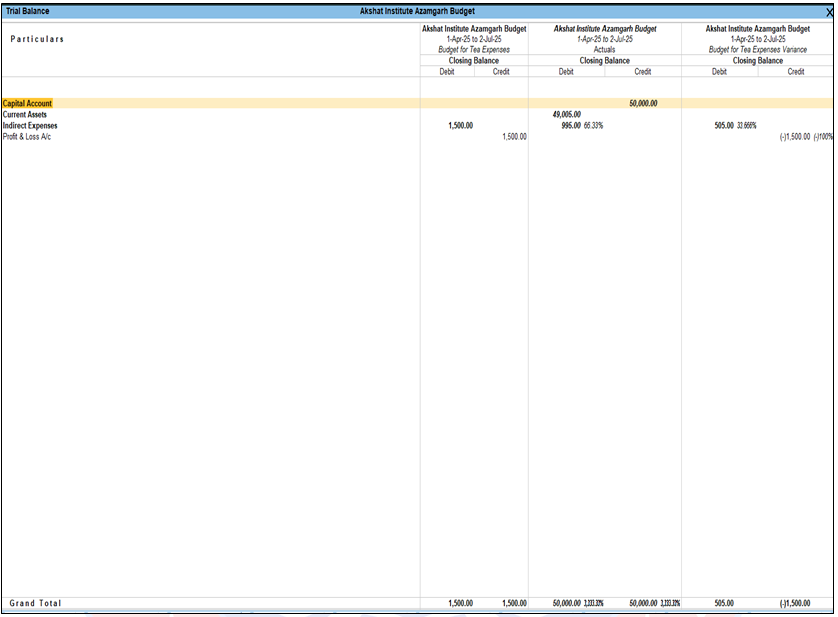
यहाँ रिपोर्ट पर्सेन्ट के अनुसार दिखाई देगी, यानि जितना Budget खर्च कर लिया है और कितना Budget बचा हुआ है। यदि बजट डिफरेंस निगेटिव वैल्यू शो करता है, तो इसका अर्थ है कि वास्तविक खर्च बजट खर्च से अधिक हो गया है।
The report will be displayed here in percentages, showing how much of the budget has been spent and how much remains. If the budget difference shows a negative value, it means that the actual expenditure has exceeded the budgeted amount.