Currency और Rate Setup बनाने के बाद अब माल को निम्न प्रकार से खरीदेंगे –
After creating the Currency and Rate Setup, we will now purchase the goods in the following manner –
Purchase/Sales Entry using Foreign Currency ||
विदेशी मुद्रा का इस्तेमाल करके माल खरीदना/बेचना
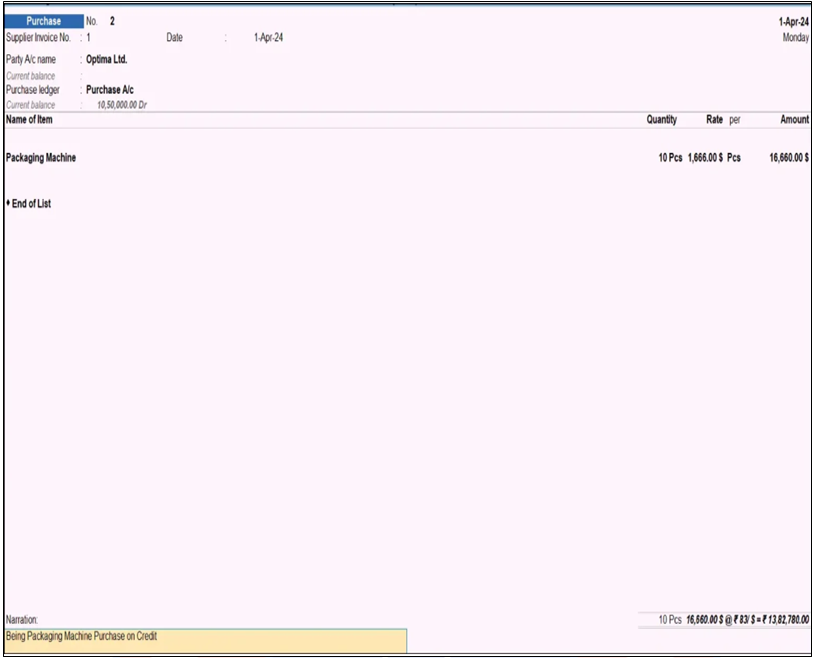
प्रश्न 1 – कंपनी ने 1-4-2024 को Optima Ltd. से 10 पीस Packaging Machine $1666/pcs के रेट से उधार खरीदी।
Question 1 – The company purchased 10 pieces of Packaging Machine from Optima Ltd. on 1-4-2024 at the rate of $1666/pcs on credit.
Path: Gateway of Tally>Vouchers>Purchase (F9)
- Voucher Mode : Item Invoice (वाउचर मोड बदलने के लिए Ctrl+H दबाएं)
Item Invoice (Press Ctrl+H to change to Voucher Mode) - Invoice No : 1 (इसमे बिल नंबर दर्ज करें) 1 (Enter bill number here)
- Date : 1-4-2024 (तारीख बदलने के लिए F2 प्रेस करें)
1-4-2024 (Press F2 to change the date) - Party Name : Optima Ltd. (पार्टी का खाता सिलेक्ट करे)
Optima Ltd. (Select Party Account) - Party Details : इसमे पार्टी की जानकारी भरें जैसे – एड्रैस, स्टेट, देश आदि।
Fill in the party information like address, state, country etc. - Purchase Ledger : Purchase A/c
- Item Name : Packaging Machine
- Qty : 10
- Rate : $1666
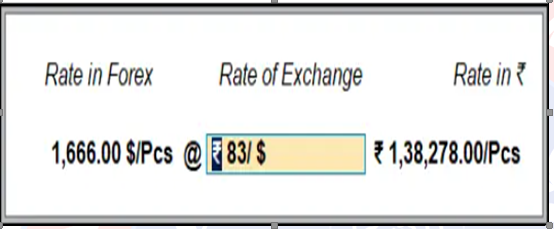
नोट- Rate फील्ड मे $ सिंबल के साथ वैल्यू बिना स्पेस दिए लिखेंगे जैसे- $116, इसके बाद जो पॉपअप विंडो ओपन होगी वहाँ से रेट्स को चेंज भी किया जा सकता है अगर रेट्स में कोई परिवर्तन हुआ है।
Note- In the Rate field, write the value with $ symbol without any space like- $116, after this the rates can also be changed from the popup window that will open, if there is any change in the rates.
सभी डिटेल्स भरने के बाद अब वाउचर Accept कर लेंगे।
After filling all the details, the voucher will now be accepted.
निम्न पाथ के अनुसार उपरोक्त खरीदे गए माल को Stock Summary Report मे देख सकते है।
The above purchased goods can be seen in the Stock Summary Report as per the following path.
Path : Gateway of Tally>Stock Summary
माल को खरीदने के बाद अब निम्न प्रश्न के अनुसार पार्टी का बकाया भुगतान करेंगे।
After purchasing the goods, we will now pay the outstanding amount to the party as per the following question.
प्रश्न 2 – कंपनी ने 1-5-2024 को Optima Ltd. का ₹87/$ के रेट से बकाया भुगतान किया।
Question 2 – The company paid the outstanding amount of Optima Ltd. on 1-5-2024 at the rate of ₹87/$.
Path : Gateway of Tally>Vouchers>Payment (F5)
- Voucher Mode: Double Entry (Ctrl+H)
- Date : 1-5-2024 (Press F2 for Date Change)
- Dr. Optima Ltd.
- Amount : $16660
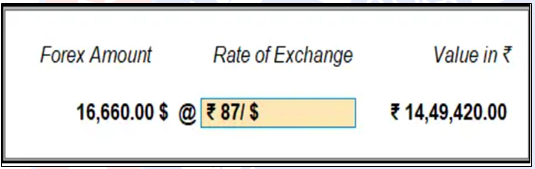
- Rate of Exchange : ₹87 (इसमे बिना सिंबल का इस्तेमाल किए 87 टाइप करें)
₹87 (Type 87 without using the symbol) - Method of Adj : Agst Ref
- Pending Bill : Select bill no 1
- Cr. SBI A/c (इसमे Bank Account का लेजर सिलेक्ट करेंगे)
SBI A/c (In this you will select the ledger of the bank account) - Rate of Exchange: इसे डिफ़ॉल्ट Accept कर लेंगे। We will accept it by default.
सभी डिटेल्स भरने के बाद निम्न फॉर्मैट के अनुसार वाउचर Accept कर लेंगे।
After filling all the details, the voucher will be accepted as per the following format.
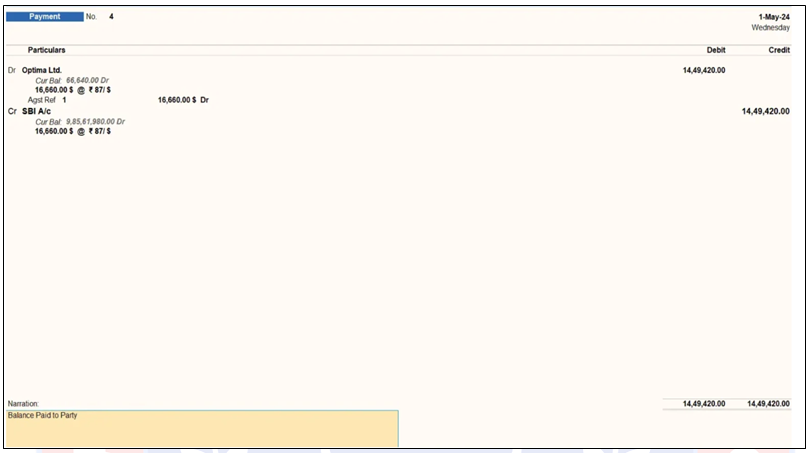
भुगतान करने के बाद बैलन्सशीट चेक करेंगे तो Optima Ltd. का बकाया बैलेंस क्लीयर हो जाएगा, लेकिन Unadjusted Forex Gain/Loss मे कुछ Debit वैल्यू दिखाई देगी, जो Forex Loss वैल्यू है। यह वैल्यू भुगतान करते वक्त Rate of Exchange मे Dollar की कीमत बढ़ने पर उत्पन्न हुई है। क्योंकि जब Optima Ltd. से Purchase किया था तो Dollar का रेट ₹83/$ था, तथा बकाया भुगतान ₹87/$ के रेट से किया है, इसलिए ये Unadjusted Forex Gain/Loss अमाउन्ट प्रदर्शित हुआ है।
After making the payment, check the balance sheet and Optima Ltd.’s outstanding balance will be cleared. However, a debit value will appear in the Unadjusted Forex Gain/Loss section, which represents the Forex Loss. This value was generated by the increase in the dollar’s exchange rate at the time of payment. Because the dollar rate was ₹83/$ when the purchase was made from Optima Ltd., and the balance payment was made at ₹87/$, this Unadjusted Forex Gain/Loss amount is displayed.
